



How to Start Selling Your Work on ArtMajeur: From Signing Up to Publishing
 Art DomSeptember 14, 2026
Step-by-step guide to the ArtMajeur interface
Below is a step-by-step sequence based on the current interface shown in your screenshots. This guide is intended for an artist who wants to create a seller profile, upload an artwork, list it for sale, and publish it in the gallery.
Step 1. Open ArtMajeur and create an account
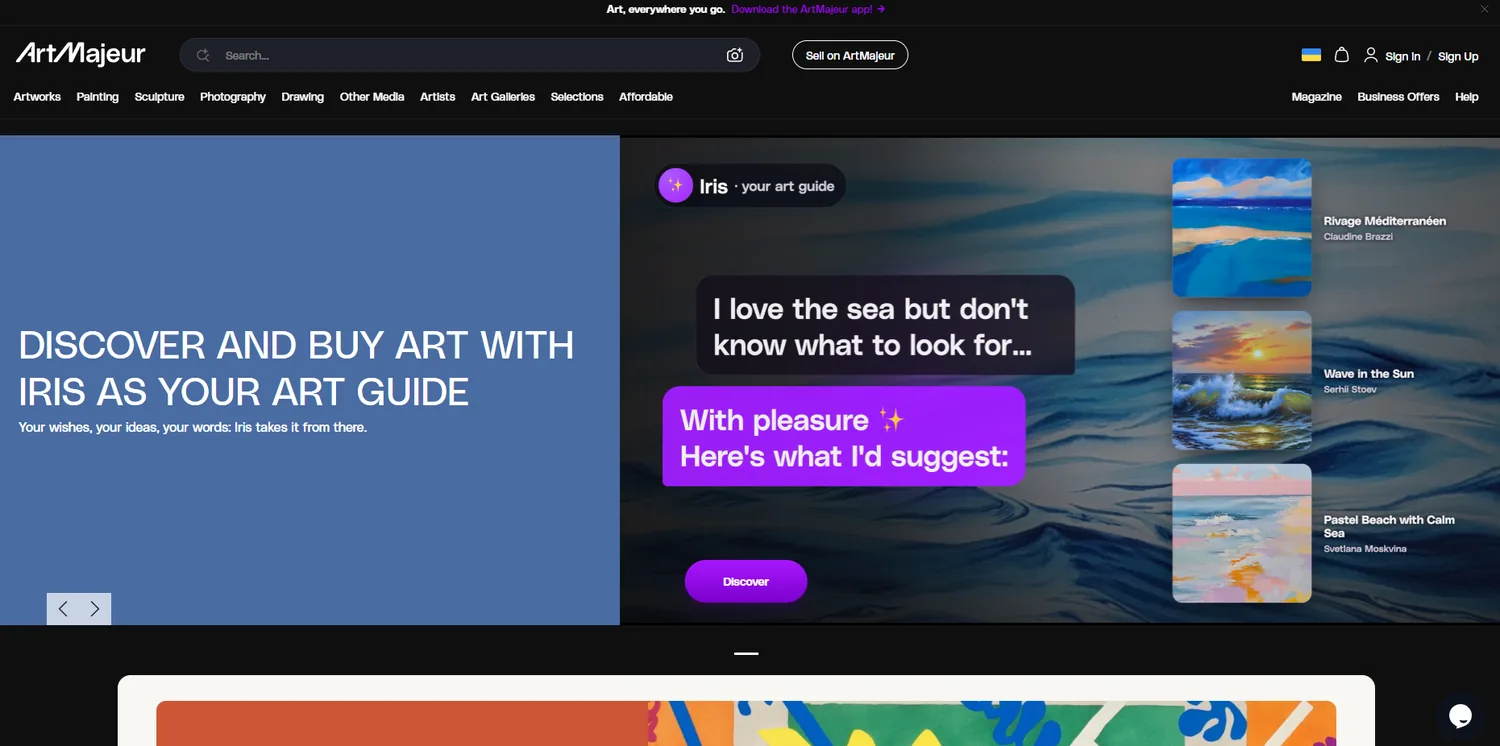
On the ArtMajeur home page, the Sign In and Sign Up. If you do not have an account yet, choose Sign Up. If your profile already exists, go to Sign In.
Step 2. Sign in to your account
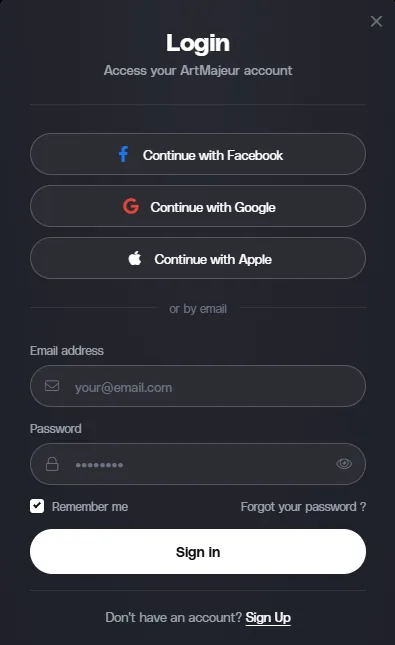
In the sign-in window, you can log in with Facebook, Google, or Apple, or use the standard email-and-password method. To sign in by email, fill in the Email address and Password, then click Sign in.
If you do not have an account yet, click Sign Up.
Step 3. Open My Account
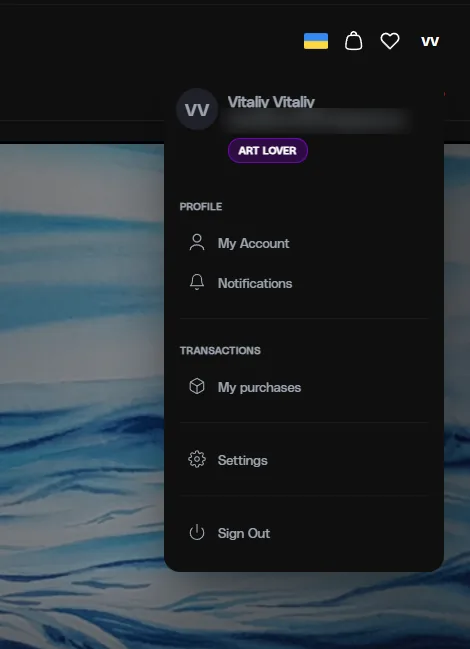
After signing in, click the round profile icon in the upper-right corner. In the drop-down menu, choose My Account. This is where you can access profile settings, artworks, sales, and messages.
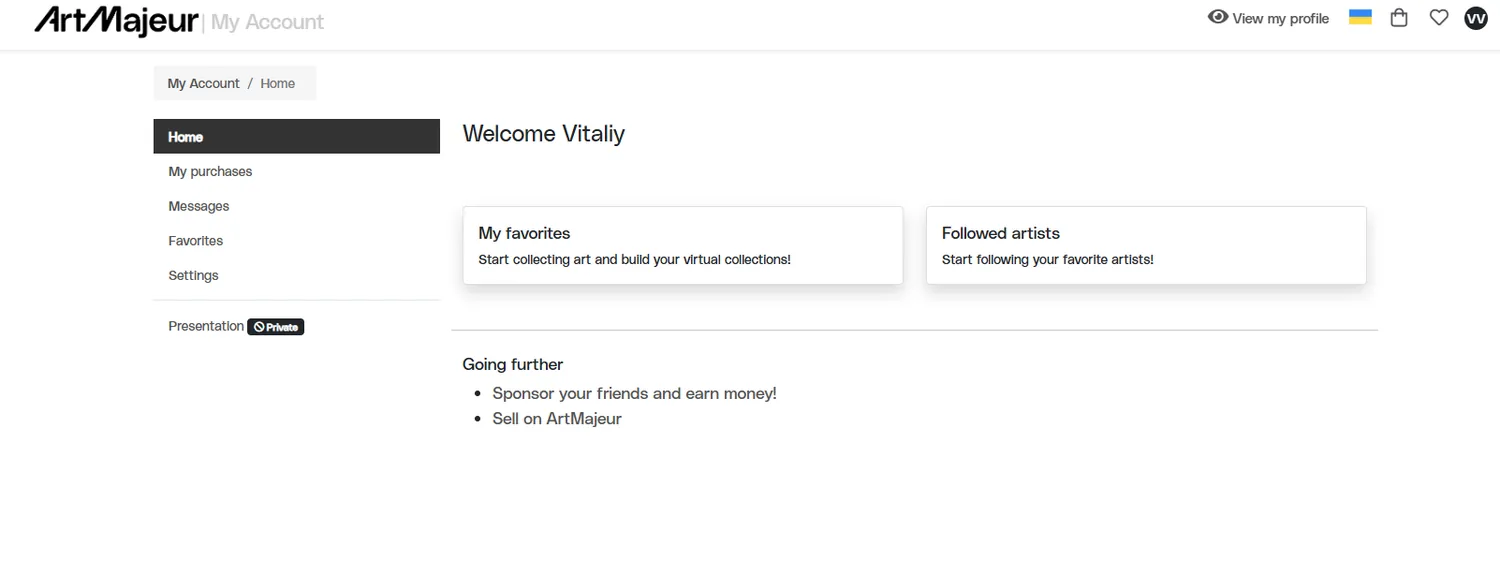
You will be taken to the main account dashboard. The My purchases, Messages and Favorites sections are not needed for the initial seller setup. We are interested in Settings and the artwork sales section.
Step 4. Go to selling on ArtMajeur
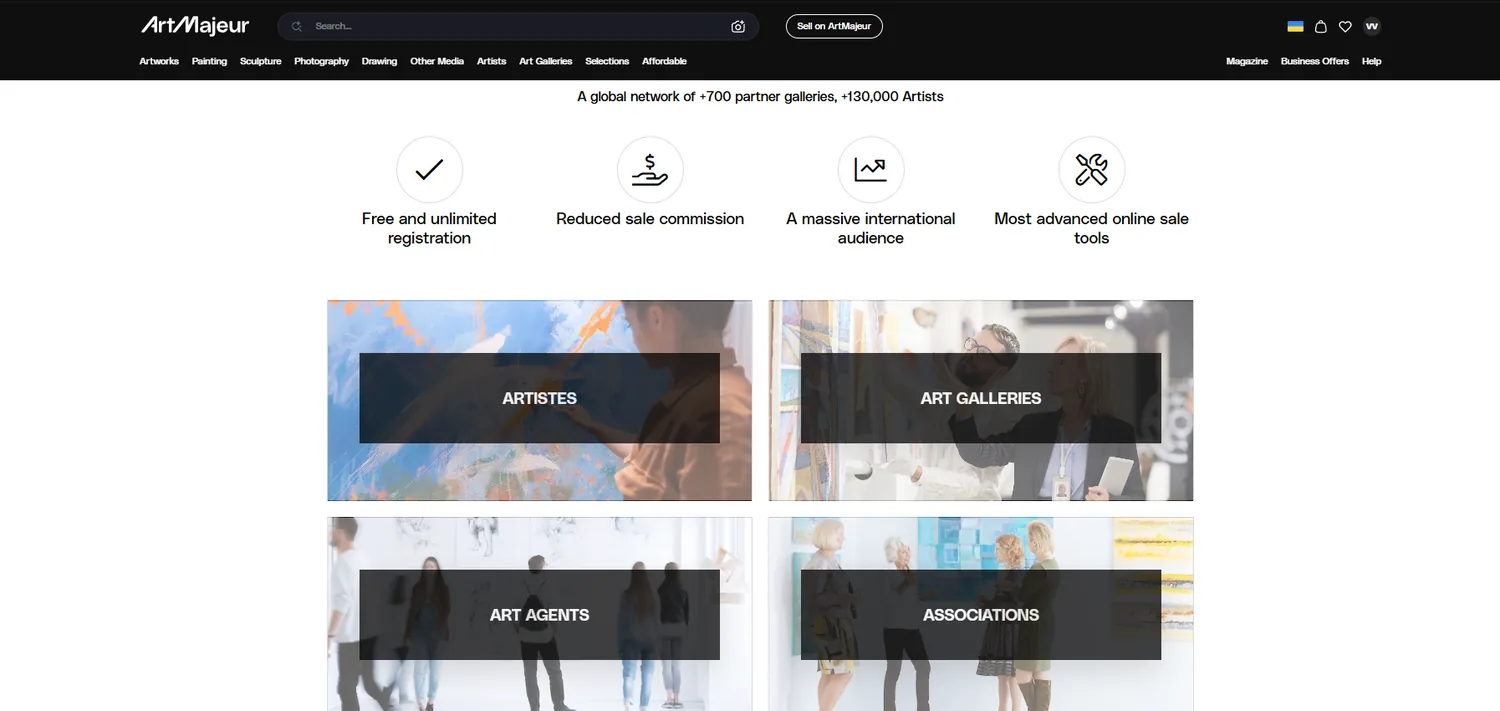
The site has a separate entry point for sellers — Sell on ArtMajeur. The page shows options for different seller types.
If you sell your own artworks, choose the artist option — ARTISTES. The ART GALLERIES option is intended for galleries that represent artists.
Step 5. Switch the account type from Art lover to Artist
If the profile was created as a regular buyer, the account type may be Art lover (I am not an artist). To list your own artworks, open:
Select Artist and click the blue Save.
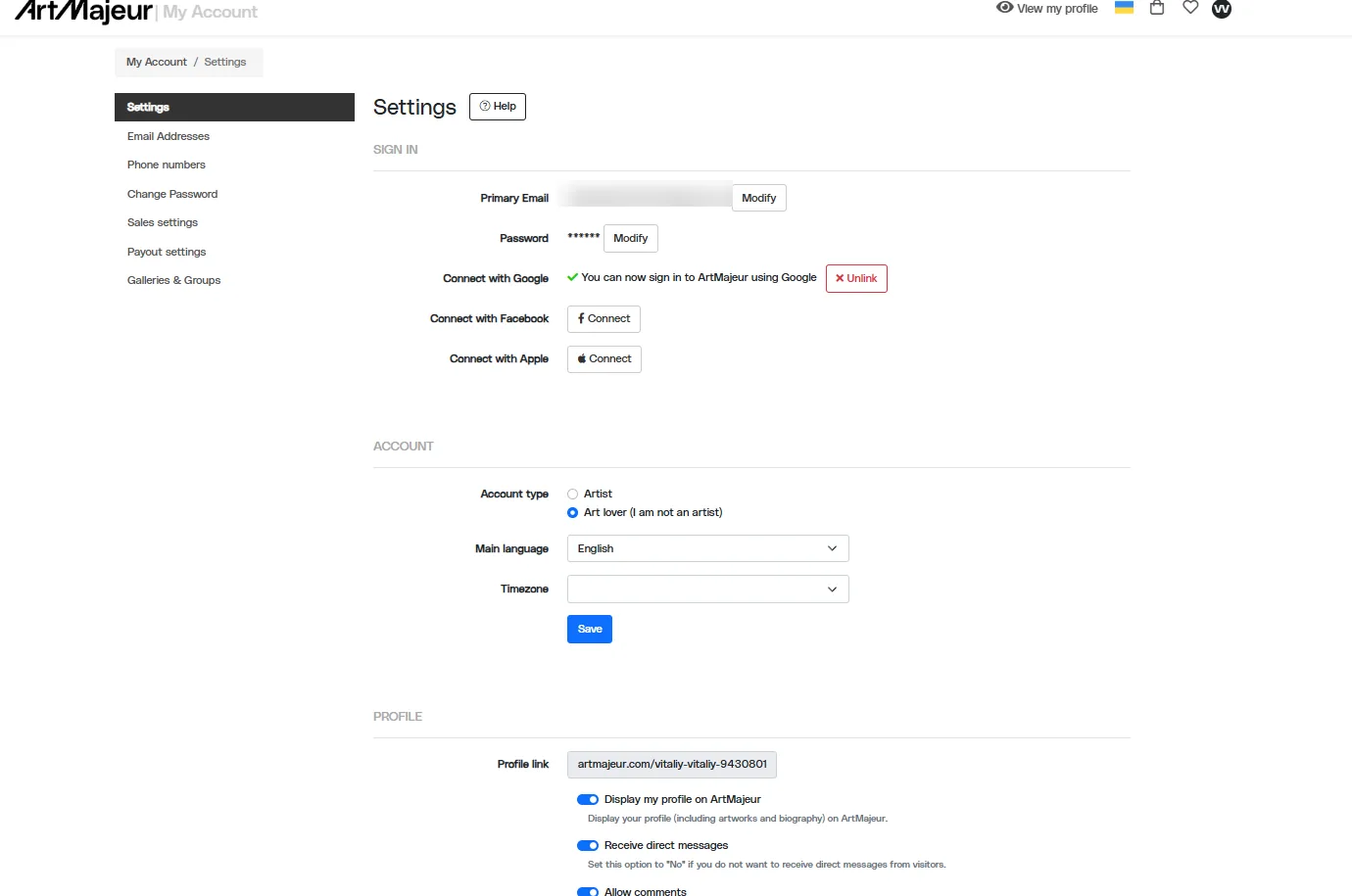
On the same page, you can also access Sales settings and Payout settings. After activating the seller account, be sure to review these sections: Sales settings controls sales parameters, while Payout settings contains the payout method available for your country.
Step 6. Complete seller account validation
After switching to Artist, a green box appears in the dashboard: Validate your account to start selling your artworks!. Click Continue.
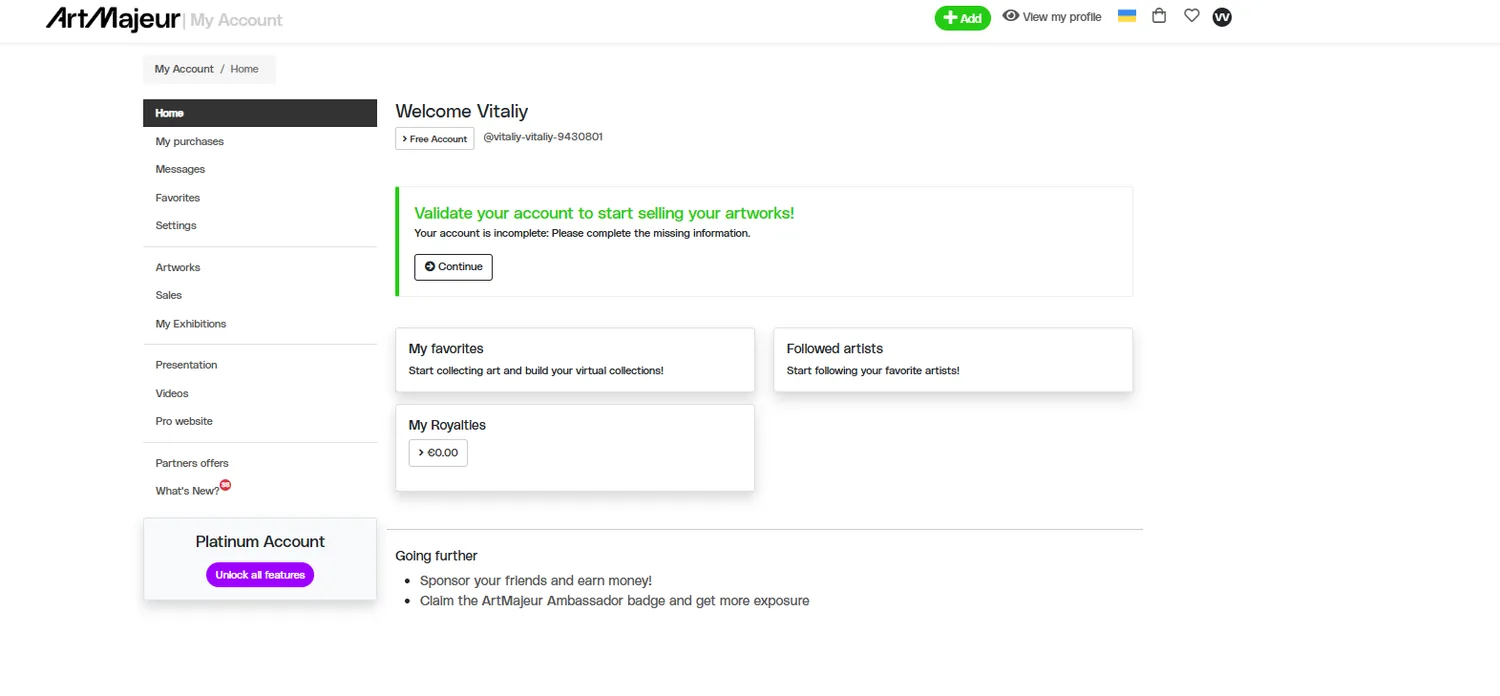
Fill in all information requested by ArtMajeur. The fields may vary depending on your country and seller type. ArtMajeur states that sellers must undergo a manual review, and after all required information is provided, moderation takes an average of about 3 business days.
Step 7. Add your first artwork
At the top of the dashboard, click the green + Add, then choose the option to add a new artwork — Add Artwork.
On the first screen, upload the main image of the artwork from your computer. According to ArtMajeur’s official instructions, the image file can be up to 25 MB. After uploading, check the crop and orientation, then click Continue.
Step 8. Add additional artwork photos
At the Additional views step, ArtMajeur recommends adding at least three additional photos. Click + Add photos.
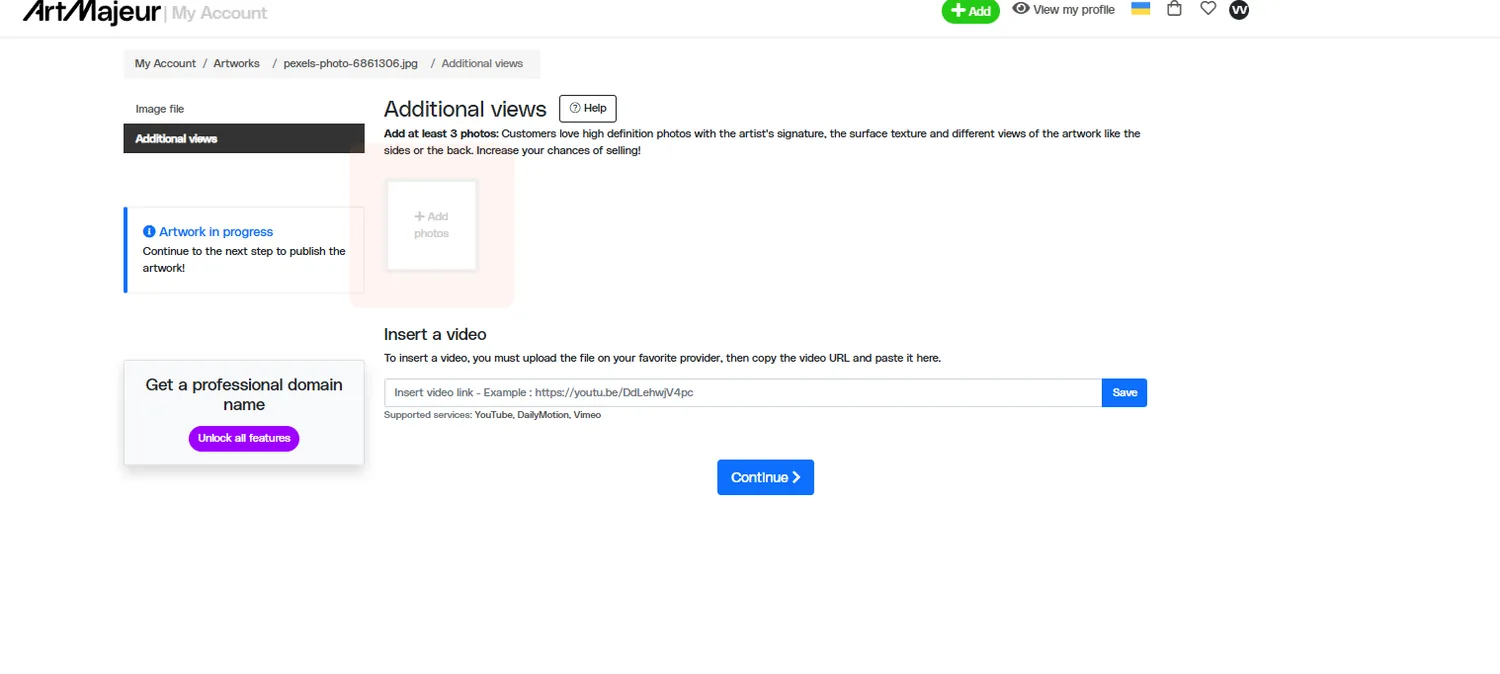
A good set of photos for a physical artwork includes:
- a full front view;
- a close-up of texture and details;
- the artist’s signature;
- a side view and thickness;
- the back side;
- if available, a certificate of authenticity or a photo of the artwork in an interior.
Video is optional. If you have one on YouTube, Vimeo, or another supported service, paste the link into the Insert a video.
Step 9. Fill in the main artwork details
In the Details section, fill in the information as completely as possible. These details appear in the artwork listing and help ArtMajeur classify it correctly.
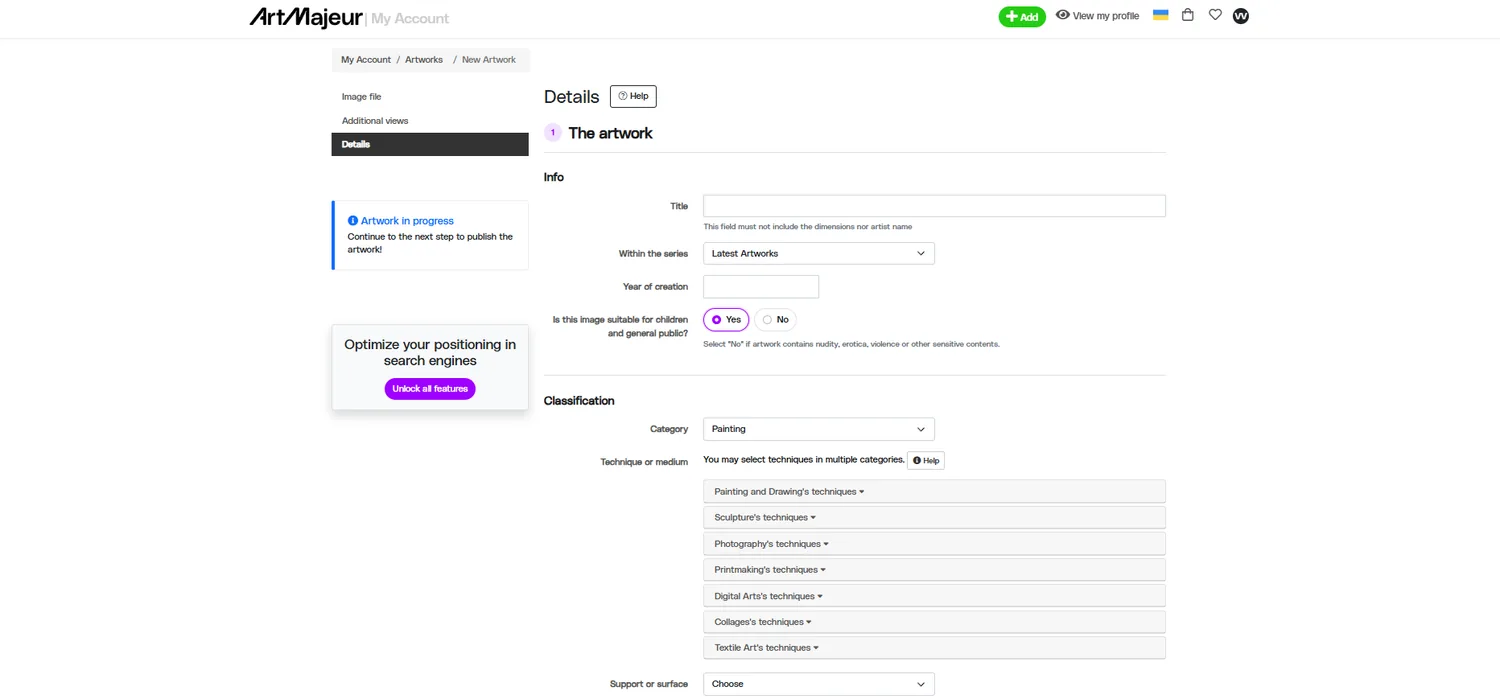
Fill in the following fields:
- Title — artwork title. Do not add the artist’s name or dimensions here;
- Within the series — series, if the artwork belongs to a series;
- Year of creation — year of creation;
- Is this image suitable for children and general public? — choose Yes or No depending on the content;
- Category — Painting, Photography, Sculpture, etc.;
- Technique or medium — technique/material;
- Support or surface — canvas, paper, wood, etc.
Step 10. Specify signature, artwork type, frame, dimensions, and weight
Further down in the same form, specify the additional characteristics.
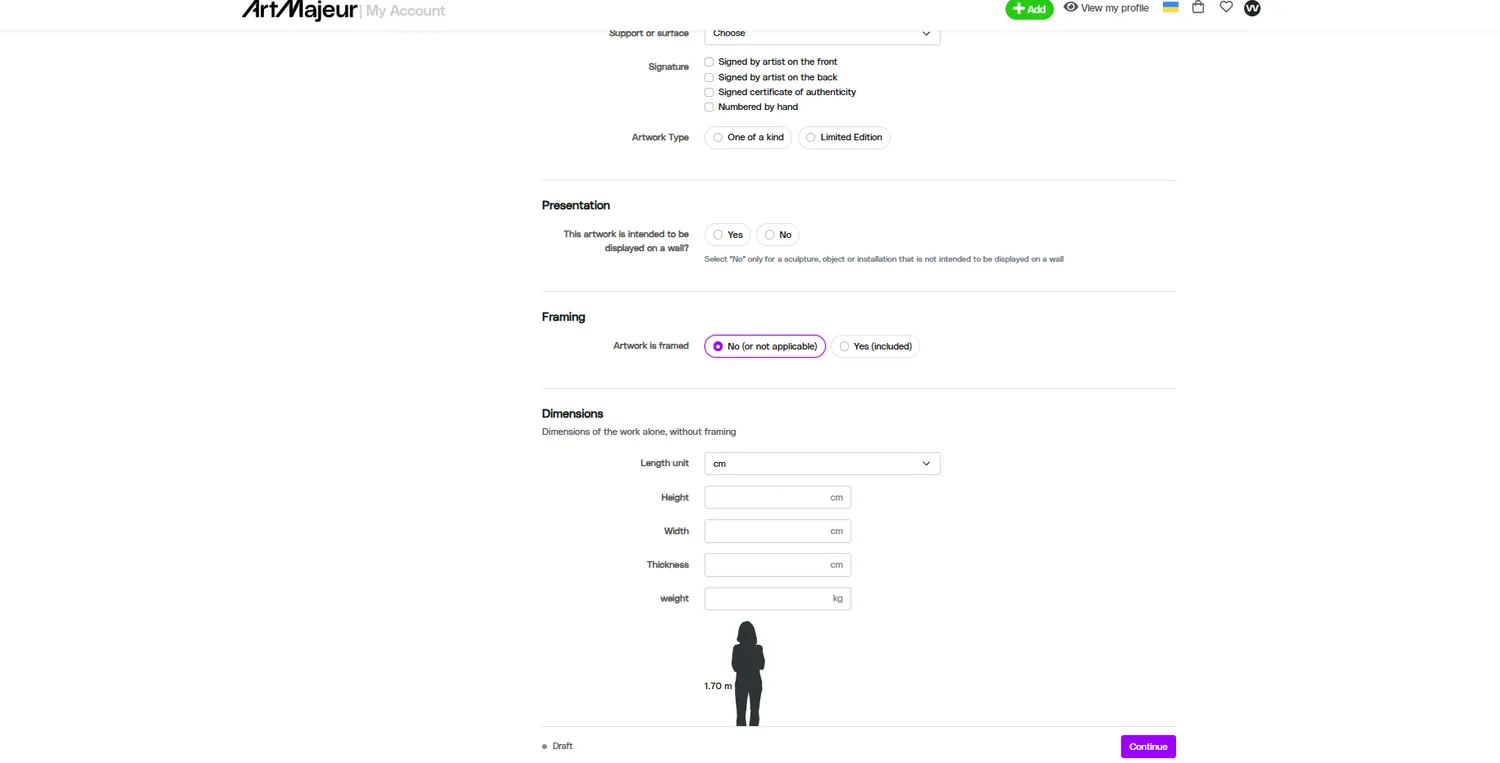
- Signature: indicate whether the artwork is signed on the front/back and whether there is a signed certificate and numbering.
- Artwork Type: One of a kind for a unique original, or Limited Edition for a limited edition.
- Presentation: indicate whether the artwork is intended to be displayed on a wall.
- Framing: choose whether the artwork is sold framed.
- Dimensions: choose the unit of measurement and enter Height, Width, Thickness, and Weight.
Step 11. Add a description, style, theme, and enable sales
In the About this artwork choose the condition of the artwork and fill in the description. A good description should answer at least four questions: what is depicted, what idea is behind it, what technique was used, and why the artwork may interest a buyer.
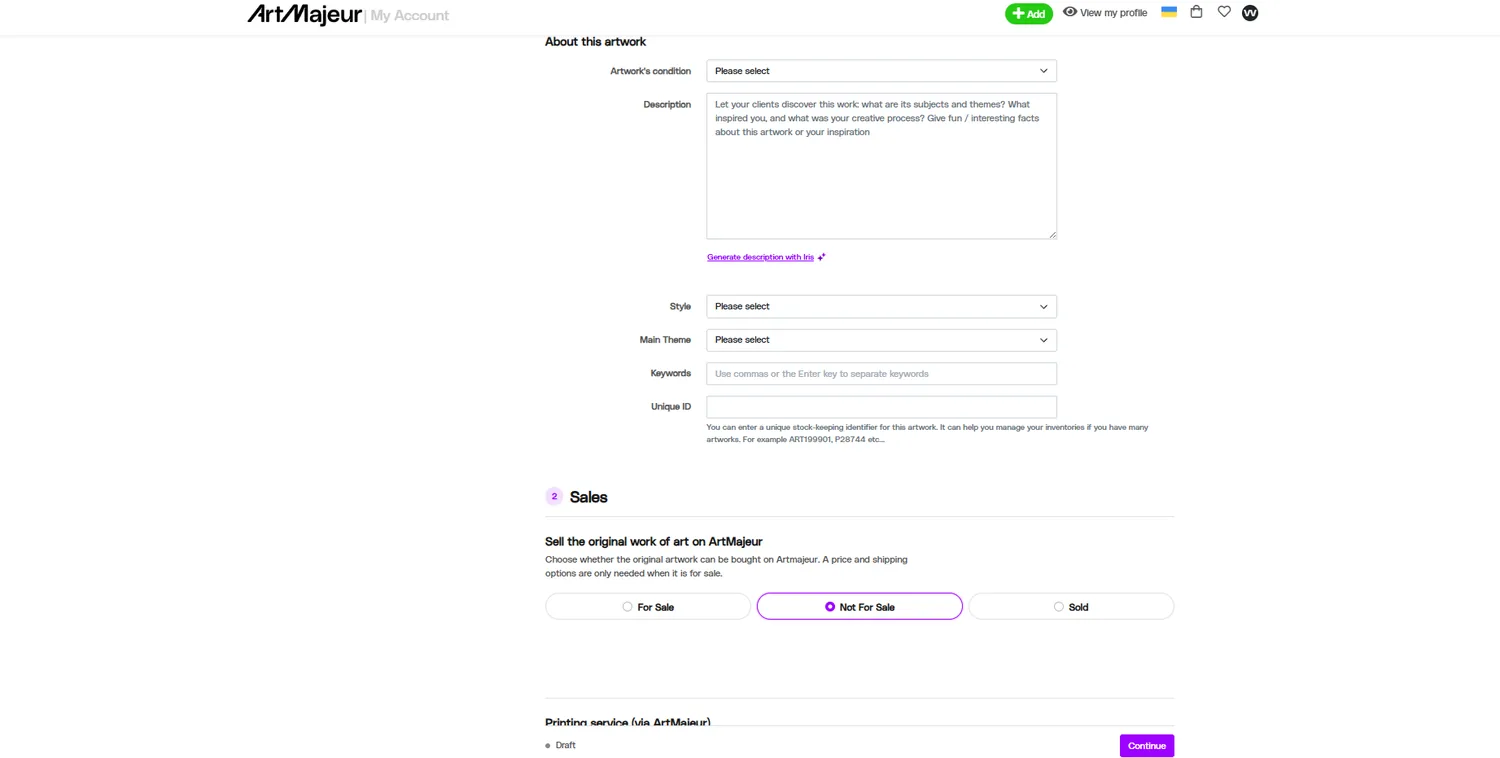
Next, fill in Style, Main Theme and Keywords. Enter keywords as separate terms, for example: abstract, sea, blue, landscape, contemporary painting. The Unique ID field is convenient for use as an internal SKU if you have many artworks.
How to list the original for sale
In the Sales the screenshot currently shows Not For Sale. To sell the artwork, switch it to For Sale. ArtMajeur will then display additional sales fields where you can set the price and available options.
The seller sets the price. ArtMajeur handles commission and shipping separately; the exact commission rate depends on the account type and membership level and is shown in your dashboard.
Step 12. Enable printing and digital file sales if needed
Additional monetization options are available below. They are optional if you only want to sell the original artwork.
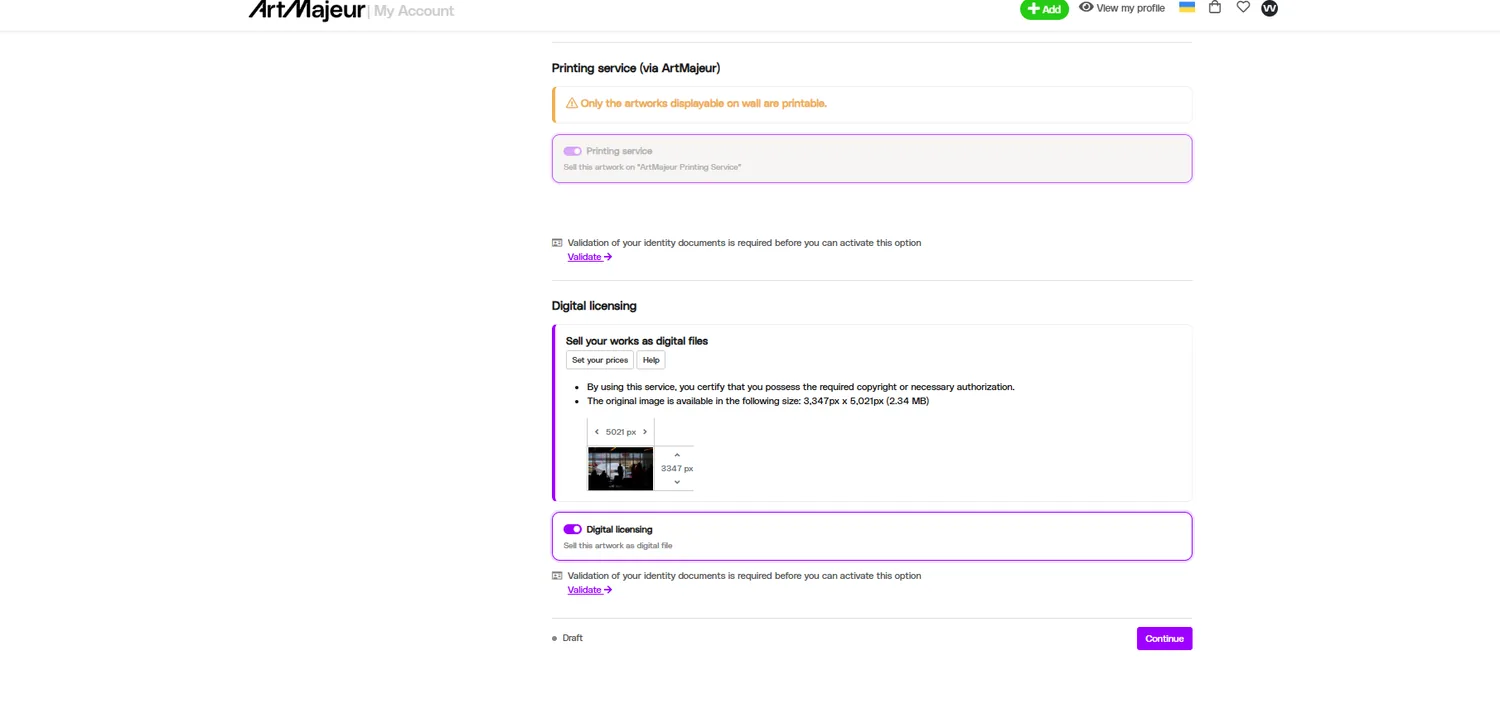
Printing service. If the artwork is suitable for printing, you can allow ArtMajeur to sell reproductions. Printing, production, and shipping are handled by the service, and the artist receives the specified royalty.
Digital licensing. You can sell a license for a digital file. The service requires identity verification for this feature. Enable it only if you own the rights to the digital file and genuinely want to allow commercial use under the license.
If you do not need these features, leave them disabled and click Continue.
Step 13. Publish the artwork and review the listing
After completing the form, ArtMajeur opens the Share Artwork. The message Your art is online! means that the artwork has been published.
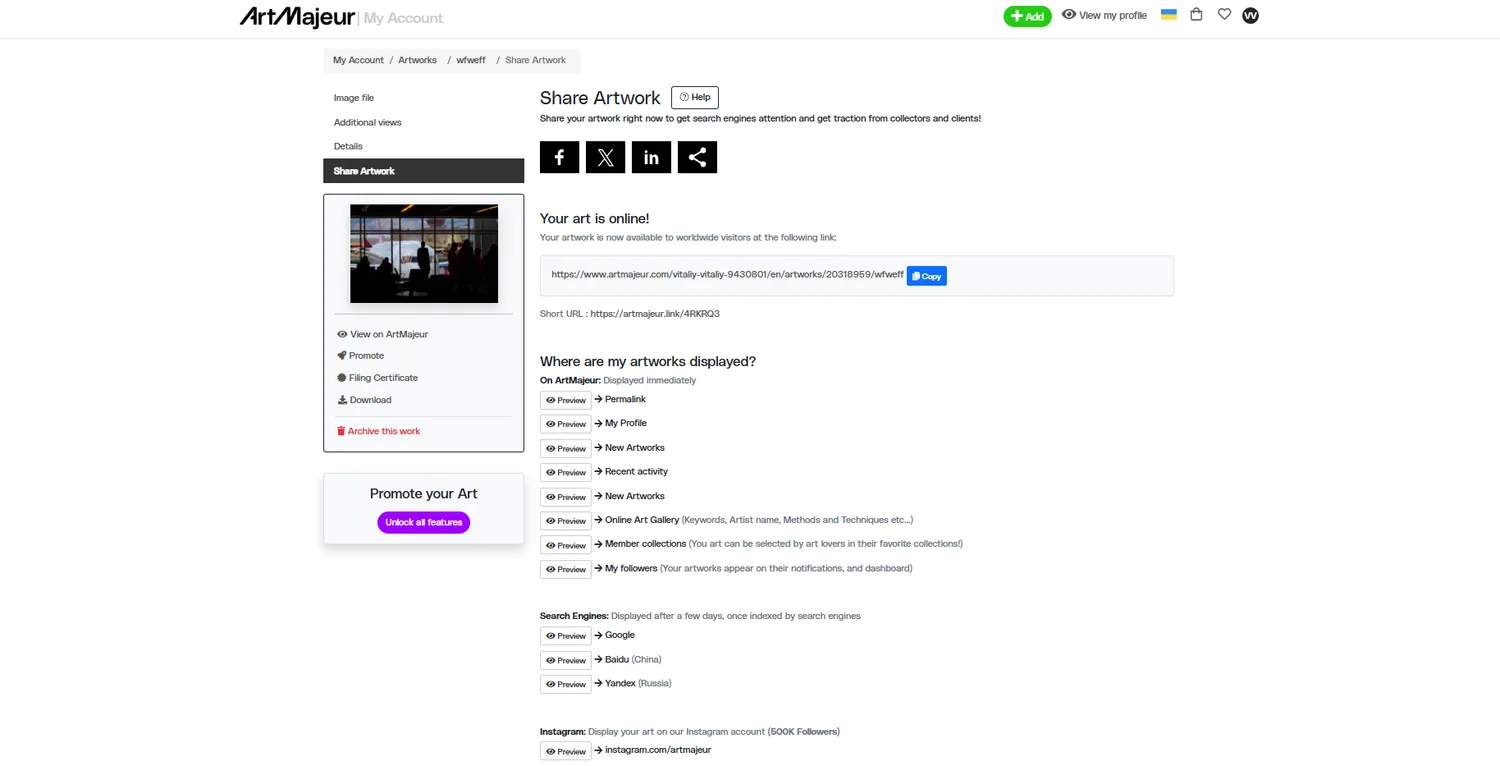
Copy the artwork link and be sure to click View on ArtMajeur. Review the artwork from a buyer’s perspective: main image, title, description, dimensions, price, availability status, and additional images.
On the same page, you can share the artwork on social media. ArtMajeur recommends doing this immediately after uploading, as it can help generate initial views and speed up discovery by search engines.
Step 14. What happens when a buyer places an order
The process for selling an original on ArtMajeur works like this:
- The buyer pays for the order through ArtMajeur. The service confirms payment and forwards the order to the seller.
- You confirm the sale and prepare the artwork. You pack it securely and include a certificate of authenticity and, if necessary, a commercial invoice.
- You ship the artwork and provide the tracking number. If you use your own carrier, responsibility for packaging remains with the seller.
- After delivery, ArtMajeur releases the funds to the seller. According to the current service documentation, payout occurs after the return period has expired, approximately 15 days after delivery.